Resideo App is used to adjust the temperature and thermostat schedule for the Dining Room and Meeting Room thermostats. Users need to be invited to create accounts.
Setting up the App for the first time
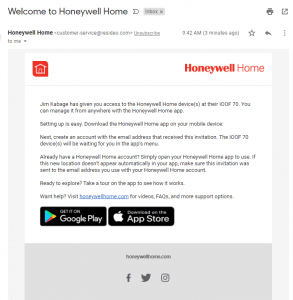
Before being able to login to the app, someone with a valid login, must send an invitation to your email address. This invitation will be initiated from their login in the app under the “Users” menu. See Managing Resideo Users.
Download and Installation
The Resideo app is only available on iOS and Android Mobile devices. To download and install the Resideo App, go to the Apple App store or Google Play Store or click on the links in the invitation email.
Running the App
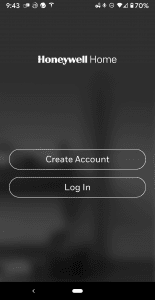
Running the app, you can click on “Login”, if you already have an account, or “Create Account,” if you’re responding to an invitation and need to create your account.
Creating Account
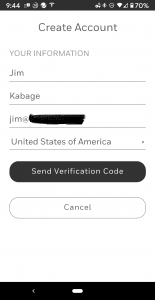
Using creating your account, enter in your full name and the email address the invitation was sent to. Click on “Send Verification Code” so the code will be sent to your invitation email address.
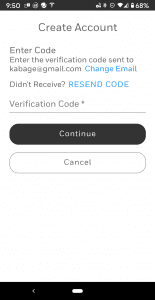
Verify Your Account
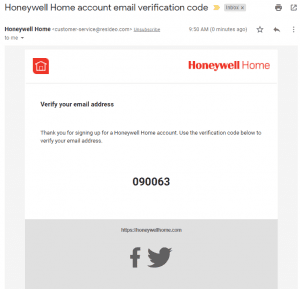
Open up the verification email. The code expires quickly, so it needs to be entered into the app as soon as you get the email. Press “Continue” to create a password for your account.
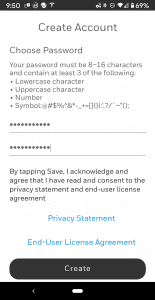
Create Password
After the verification process is completed, create a password. Press “Create” after entering your password. Please follow the password requirements to create a strong password.
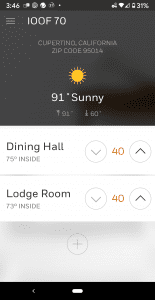
Start Using the App
Once the password has been set, you’ll be taken to the home screen of the app and see each room listed.