OpenVPN is a Secure, software that creates a Virtual Private Network connection to a network. We can use OpenVPN to connect to the lodge network from remote locations. The current need lies with administrative duties related to the network router, camera system and network thermostat.
Download and Installation
Desktop – To download and install OpenVPN on your desktop (Windows or MacOS), open your web browser and download it from: https://openvpn.net/download-open-vpn/
Mobile – To download and install OpenVPN for mobile, go to the Apple App store or Google Play store to download and install.
Configuration
The applications on each platform are view similar, so the following instructions should work for all of them.
The configuration is in two parts. First, import the .ovpn file that will be provided to you when given permission to use the VPN. Second, you’ll receive a username and password to log into the VPN.
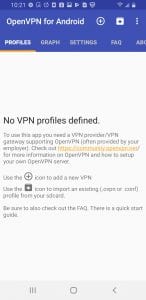
After installing OpenVPN, tap on the down arrow (in mobile) or click on the “+” icon for the desktop.
On the Desktop, click on the “File” tab and on Mobile, it will take you to your mobile file browser to import the required file.
A file, with the extension of .ovpn, will need to be provided to you. It needs to be accessible from your desktop or mobile device. Examples are saved from an email or available through a cloud link as in Dropbox.
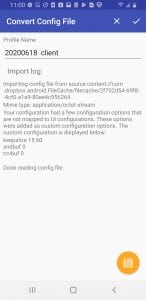
After locating and selecting the file, you’ll receive the following screen that show the import confirmation. On this screen, you can rename the connection as the default will be the same as the file name. You can choose a name such as “Cupertino Lodge.” Once entered, press the check mark on the top right of the page to save and take you to the VPN listing page.
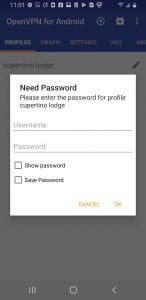
Once you’re on the VPN listing page, tab or click the VPN name you created and you’ll be prompted for Username and Password.
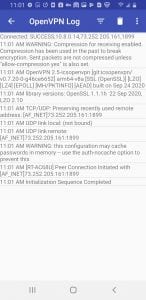
After logging in, you’ll see the confirmation screen and you can press the upper left arrow to go back to the VPN list screen.
By tapping or clicking on the VPN name, you can choose disconnect when you’re done. For Desktop, it give you a radial slider that you can use to connect and disconnect to the VPN.